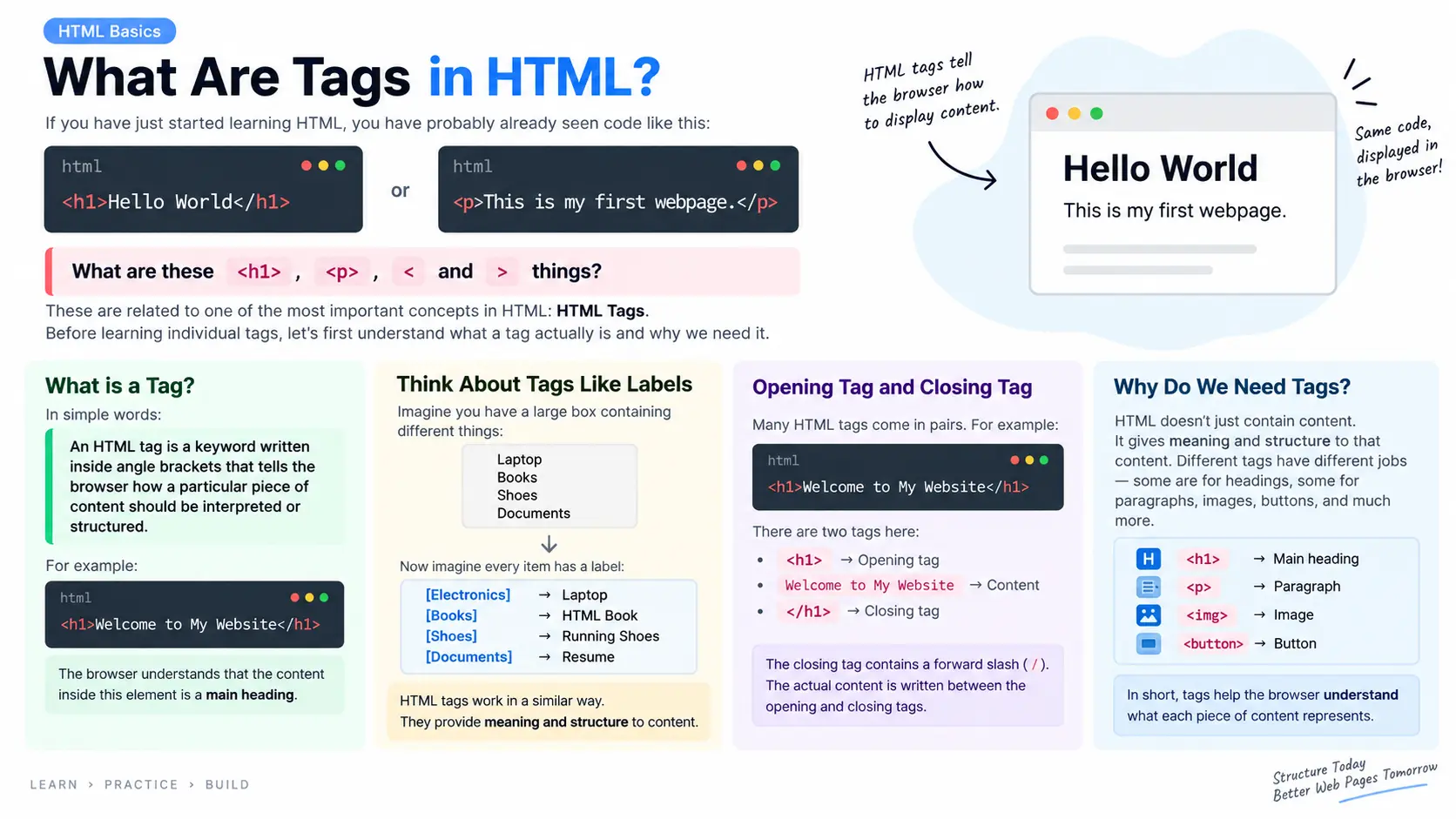
If you have just started learning HTML, you have probably already seen code like this:
<h1>Hello World</h1>
or:
<p>This is my first webpage.</p>
You may be wondering:
What are these <h1>, <p>, < and > things?
These are related to one of the most important concepts in HTML: HTML Tags.
Before learning individual tags, let's first understand what a tag actually is and why we need it.
What is a Tag?
In simple words:
An HTML tag is a keyword written inside angle brackets that tells the browser how a particular piece of content should be interpreted or structured.
For example:
<h1>Welcome to My Website</h1>
Here:
<h1>
is an HTML tag.
The browser understands that the content inside this element is a main heading.
Similarly:
<p>Hello, everyone!</p>
uses the <p> tag to represent a paragraph.
So instead of simply giving the browser some text like:
Welcome to My Website
we can tell the browser what that text actually represents:
<h1>Welcome to My Website</h1>
Now the browser knows:
"This is a heading."
And that's one of the main purposes of HTML.
HTML doesn't just contain content. It gives meaning and structure to that content.
Think About Tags Like Labels
Let's take a real-world example.
Imagine you have a large box containing different things:
Laptop
Books
Shoes
Documents
If everything is simply thrown into the box, it becomes difficult to understand what each thing is.
Instead, imagine that every item has a label:
[Electronics] → Laptop
[Books]       → HTML Book
[Shoes]       → Running Shoes
[Documents]   → Resume
Now it becomes much easier to understand the purpose of each item.
HTML tags work in a similar way.
They provide meaning and structure to content.
For example:
<h1>My Portfolio</h1>
The <h1> tag tells the browser:
"My Portfolio is the main heading."
And:
<p>I am a software developer.</p>
tells the browser:
"This is a paragraph."
How Does an HTML Tag Look?
An HTML tag is generally written inside angle brackets:
<tag>
For example:
<h1>
<p>
<button>
<img>
The opening < and closing > are important because they tell the browser that what is written between them is HTML markup.
For example:
<h1>
Here:
-
<→ Opening angle bracket -
h1→ Tag name -
>→ Closing angle bracket
The browser reads this as an HTML tag.
Opening Tag and Closing Tag
Many HTML tags normally come in pairs.
For example:
<h1>Welcome to My Website</h1>
There are two tags here:
<h1>
and:
</h1>
The first one is called the opening tag.
The second one is called the closing tag.
The closing tag contains a forward slash /.
So:
<h1>
is the opening tag, while:
</h1>
is the closing tag.
The actual content is written between them:
<h1>Welcome to My Website</h1>
Here:
<h1>                  → Opening tag
Welcome to My Website → Content
</h1>                 → Closing tag
You will use this pattern very frequently while learning HTML.
Real-World Example: A Restaurant Menu
Let's say you are creating a restaurant website.
You have this information:
Welcome to Rohan's Restaurant

We serve delicious Indian food.

Our Menu

Paneer Tikka
Biryani
Butter Naan
If we simply put all of this into HTML without any structure, the browser doesn't know what each piece of information represents.
Instead, we can use different tags:
<h1>Welcome to Rohan's Restaurant</h1>

<p>We serve delicious Indian food.</p>

<h2>Our Menu</h2>

<p>Paneer Tikka</p>

<p>Biryani</p>

<p>Butter Naan</p>
Now the structure is much clearer.
The browser understands that:
<h1>
represents the main heading.
<p>
represents paragraphs.
And:
<h2>
represents a subheading.
This is exactly what HTML is designed to do: structure information.
Different Tags Have Different Jobs
HTML has many different tags, and each tag has a specific purpose.
For example:
| Tag | Purpose |
|---|---|
<h1> |
Main heading |
<h2> |
Subheading |
<p> |
Paragraph |
<a> |
Link |
<img> |
Image |
<button> |
Button |
<ul> |
Unordered list |
<ol> |
Ordered list |
<li> |
List item |
For example, if you want to create a link:
<a href="https://example.com">Visit Website</a>
If you want to display an image:
<img src="photo.jpg" alt="My Photo">
If you want to create a button:
<button>Login</button>
Each tag communicates something different to the browser.
Tags Help Create the Structure of a Webpage
Let's look at a simple webpage:
<h1>Rohan's Portfolio</h1>

<p>Welcome to my portfolio website.</p>

<h2>My Skills</h2>

<p>HTML</p>
<p>CSS</p>
<p>JavaScript</p>

<button>Contact Me</button>
Even without CSS, the HTML already gives us some structure.
We have:
Main Heading
     ↓
Introduction
     ↓
Subheading
     ↓
Skills
     ↓
Button
Later, CSS can be used to make this webpage beautiful.
For example, we can change:
-
Colors
-
Font sizes
-
Spacing
-
Layout
-
Backgrounds
-
Borders
-
Animations
But HTML comes first because it provides the basic structure.
You can think of it like building a house.
HTML → Structure
CSS → Design
JavaScript → Behaviour
So HTML is like the basic framework of our webpage.
What About Tags Like <img>?
You may notice that not every tag follows the opening-and-closing pattern.
For example:
<img src="profile.jpg" alt="Profile Photo">
We don't normally write:
</img>
This is because <img> is a void element.
Void elements don't have normal closing tags.
Some commonly used void elements include:
<img>
<br>
<hr>
<input>
<meta>
<link>
Don't worry about memorizing all of these right now. We will learn them individually later.
For now, just understand that some HTML tags have opening and closing tags, while some do not.
Tags vs Elements
This is another important concept that beginners often confuse.
Consider:
<p>Hello World</p>
The tags are:
<p>
and:
</p>
But the complete structure:
<p>Hello World</p>
is called an HTML element.
So, very simply:
<p>             → Opening tag

Hello World     → Content

</p>            → Closing tag

<p>Hello World</p>
        ↓
   HTML Element
You will hear the words tag and element frequently while learning HTML, so it is useful to understand the difference early.
Can We Create Our Own HTML Tags?
As a beginner, you might think:
"If tags are just names inside
< >, can I create something like<myheading>?"
Technically, HTML has a defined set of standard elements that browsers understand.
For example:
<h1>
<p>
<a>
<img>
<button>
These have established meanings.
You should use the appropriate standard HTML element for the content you are creating.
For example, if something is a heading, use a heading element:
<h1>Welcome</h1>
rather than inventing your own tag:
<myheading>Welcome</myheading>
Using the correct HTML elements is important because HTML is not just about making content appear on the screen. It is also about giving that content the correct meaning.
One More Real-World Example
Imagine you are creating a college website.
You might have:
College Name
About the College
Courses
Admissions
Contact Us
You can represent this structure using HTML:
<h1>ABC Engineering College</h1>

<h2>About the College</h2>

<p>ABC Engineering College provides...</p>

<h2>Courses</h2>

<p>Computer Science Engineering</p>
<p>Mechanical Engineering</p>

<h2>Admissions</h2>

<p>Admissions are open for the new academic year.</p>

<h2>Contact Us</h2>

<button>Contact College</button>
Here, the tags make the relationship between the different pieces of information clear.
The college name is the main heading.
The different sections have subheadings.
The descriptions are paragraphs.
And the contact action can be represented using a button.
Final Takeaway
So, if you are just starting HTML, remember one simple idea:
HTML tags tell the browser what different pieces of content represent.
For example:
<h1>My Website</h1>
means:
"My Website is a main heading."
And:
<p>Welcome to my website.</p>
means:
"This is a paragraph."
Tags are written inside angle brackets:
<p>
Many tags have an opening and closing tag:
<p>Hello World</p>
while some elements, such as <img> and <input>, are void elements and don't use a normal closing tag.
As you continue learning HTML, you will come across many different tags. Don't try to memorize all of them at once.
Instead, focus on understanding what each tag represents and when you should use it.
Once you understand this idea, HTML becomes much easier because you stop seeing the code as random symbols and start seeing it as a structured way of describing the content of a webpage.